Vikings IPTV on Roku: 4K Sports Setup Guide
August 15, 2026 · 8 min read
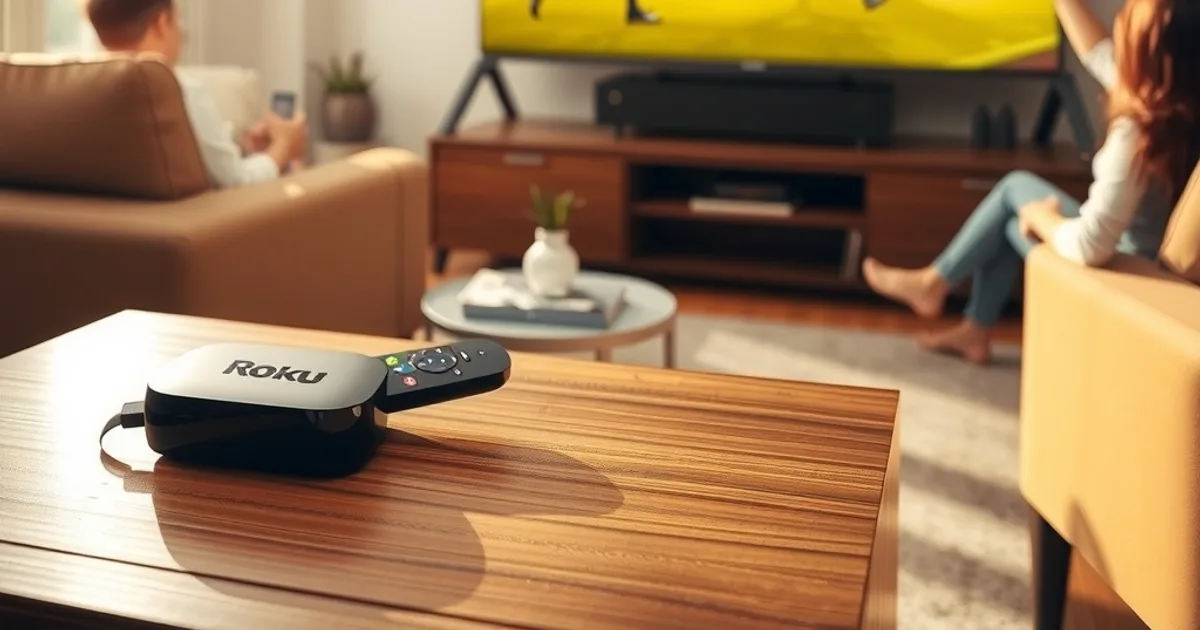
Roku doesn't work like Fire TV or an Android box. There's no app drawer full of side-loaded IPTV players, no easy APK install, and no official Vikings IPTV channel sitting in the Roku Channel Store waiting to be added. That closed design is exactly why so many Roku owners land on generic "IPTV on Roku" guides that explain the concept but never say what to actually type into the player once it's installed.
This guide closes that gap. It walks through why Roku behaves differently from other streaming boxes, which player apps actually work with a Vikings IPTV playlist, how to get the connection running end to end, and how to tune it so 4K sports don't stutter the moment a match kicks off.
August 2026 is a good time to get this right. The Premier League opens its new season on August 22, the US Open tennis Fan Week starts August 23 with main-draw play from August 30, and Europe's other top domestic leagues are coming out of their summer break in the same window. Anyone setting up a new streaming device for the season is doing it right now — this is the setup to get sorted before kickoff, not after the first buffering wheel shows up mid-match.
Why Roku Is Different From Fire TV or an Android Box
Fire TV and Android TV boxes run a variant of Android underneath, which means you can install an APK file directly, or side-load an app from outside the official store, with only a settings toggle standing in the way. Roku OS is a closed, purpose-built platform. There is no APK installer, no "unknown sources" switch, and no general-purpose file manager sitting on the home screen.
What Roku does allow is developer mode: a hidden menu that lets you install a private "channel" (Roku's term for an app) by uploading a packaged file over your home network from a browser, rather than downloading it from the Channel Store. It's a legitimate, Roku-supported feature meant for testing channels before publishing — and it's also the door IPTV player apps walk through, since none of the mainstream IPTV players ship as public Roku Channel Store listings.
The upshot: setting up IPTV on Roku takes a few extra minutes of one-time configuration compared with Fire TV or an Android box, but once a compatible player is installed, the day-to-day experience — loading your Vikings IPTV playlist, browsing channels, watching sport in 4K — is just as smooth.
Not sure if your Roku model can handle this setup? Ask before you install anything.
Is Vikings IPTV Officially in the Roku Channel Store?
No, and neither is any other IPTV service — that's a Roku platform policy, not a Vikings IPTV limitation. Roku's Channel Store review process doesn't approve generic IPTV player apps that accept a user-supplied playlist URL, because the store has no way to vet what content that URL points to. This applies network-wide, so you won't find IPTV Smarters, OTTplayer, or any comparable player listed there either.
That's why the correct move on Roku isn't to search the Channel Store for "Vikings IPTV." It's to install a general-purpose IPTV player through developer mode, then load your Vikings IPTV credentials or M3U link inside that player. The playlist and the player are two separate things — the player is the piece of software, Vikings IPTV is the service feeding it channels — and understanding that split is what makes the rest of this setup make sense.
Best Compatible IPTV Player Apps for Roku
Two players show up consistently as reliable choices for Roku: Smarters Player Lite and OTTplayer. Both accept either a full Xtream-Codes style login (server URL, username, password) or a direct M3U playlist link, which covers however your Vikings IPTV access is delivered.
Smarters Player Lite is the Roku build of the widely used IPTV Smarters ecosystem. It handles EPG (electronic program guide) data well, organizes live channels into categories, and keeps a clean, remote-friendly interface — useful on a platform where you're navigating with a D-pad instead of a touchscreen or mouse.
OTTplayer is a lighter alternative with a simpler channel list view and less EPG polish, but it tends to start faster and uses less memory, which can matter on older Roku hardware (Roku Express or entry-level Roku TVs) with limited RAM. If your device feels sluggish with Smarters Player Lite, OTTplayer is the fallback worth trying.
Either app works fine with Vikings IPTV. Pick based on your device's horsepower and how much you care about a polished guide versus raw speed — not because one is "the official" choice, since neither is.
Step-by-Step: Installing and Configuring Vikings IPTV on Roku
Start by enabling developer mode. On the Roku remote, press: Home x3, Up x2, Right, Left, Right, Left, Right. This opens the developer settings screen, where you'll create a password and see two things you need: the device's IP address and a local web address (something like http://192.168.x.x) that you'll open in a browser on your phone or computer, both connected to the same Wi-Fi network as the Roku.
Download the Smarters Player Lite or OTTplayer channel package (a .zip file) from the developer's official site, then open the Roku's local web address in your browser, log in with the developer-mode password, and upload that .zip file. Roku installs it as a private channel that appears on your home screen alongside your regular apps within a minute or two.
Open the newly installed player and choose the login method that matches what you were given for Vikings IPTV — either the Xtream-Codes fields (server, username, password) or a single M3U playlist URL. Enter it exactly as provided, confirm, and the app will pull down your channel list and EPG data. First sync can take a minute on a slower connection; that's normal.
Once the channel list populates, do a quick spot-check: open two or three channels from different categories (a news channel, a sports channel, an entertainment channel) to confirm playback works before you rely on it during a live match.
Optimizing for 4K Sports Streaming: Bitrate and Network Settings
Live sport is the least forgiving content type for a shaky connection — unlike a movie, it can't buffer ahead, so any dip in throughput shows up instantly as stutter or a frozen frame. The single biggest factor is whether your Roku is on Wi-Fi or Ethernet. If your Roku model supports a wired connection (most Roku Ultra and Roku TV models do, either natively or via a USB-to-Ethernet adapter), use it for match days. A wired connection removes Wi-Fi interference and channel congestion from the equation entirely.
If Wi-Fi is your only option, put the Roku on the 5GHz band rather than 2.4GHz where your router supports both — 5GHz has more bandwidth and less interference from neighboring networks, though it has a shorter range, so proximity to the router matters more.
Inside Smarters Player Lite and OTTplayer, look for a buffer or cache setting and increase it slightly above default (a few extra seconds of buffer) for live 4K sport specifically — it costs a couple of seconds of extra start-up delay in exchange for far more resilience against brief network hiccups during the stream. And close background apps you're not using; Roku's lower-end models have limited memory, and a heavy player app fighting for RAM against other background channels is a common, invisible cause of stutter.
For device-specific 4K tuning on other platforms, see our companion guides on Fire Stick and Apple TV 4K — the underlying network principles carry over even though the settings menus differ.
AirPlay Streaming From iPhone or iPad to Roku for Bonus Flexibility
Most current Roku devices support AirPlay 2, which lets you mirror or stream directly from an iPhone or iPad to the Roku without any extra app on the Roku side. This is a genuinely useful backup path: if your Roku-installed IPTV player ever misbehaves mid-match, you can open Vikings IPTV in a mobile browser or a companion app on your phone and AirPlay the picture straight to the TV in seconds.
To use it, make sure AirPlay is enabled in Roku's Settings > Apple AirPlay and HomeKit menu, keep both devices on the same Wi-Fi network, then use the standard iOS Screen Mirroring control to select the Roku by name. It's not a replacement for the sideloaded player — the player gives you the full channel list and EPG — but as a quick fallback for a single game, it's a handy option to know about.
Troubleshooting Roku-Specific Issues
Buffering that appears only during live sport but not on other channels usually points to network congestion at peak viewing times (kickoff, half-time returns) rather than the playlist itself — the wired-connection and 5GHz tips above are the first things to try.
App crashes or a black screen right after opening a channel are frequently a sideloaded-app memory issue on older Roku hardware. Restart the Roku (Settings > System > Power > System restart) to clear memory, and avoid running the IPTV player alongside other memory-heavy channels in the background.
If the private channel disappears from your home screen after a Roku software update, that's expected — Roku sometimes clears developer-mode channels during OS updates. Reinstall the .zip package through the same local web address; your Vikings IPTV login details don't change, so you won't need to re-request anything, just re-enter what you already have.
Connection timeouts on first login are almost always a typo in the server address or a missing http:// prefix — double-check the exact string against what was provided rather than assuming the service is down.
Get your Vikings IPTV access sorted before Premier League kickoff on August 22.
Extending to Multi-Room Roku Setups
If you're running more than one Roku in the house — a Roku Ultra on the main TV and a Roku Express in a bedroom, for instance — the developer-mode install has to be repeated on each device individually; there's no bulk-push feature for private channels across Roku units. The playlist credentials themselves, though, can typically be reused across every device at once, so the extra work is limited to the sideload step, not re-provisioning access.
For a full walkthrough of running Vikings IPTV across several TVs and devices at the same time — including what to expect from simultaneous-stream limits — see our multi-room setup guide, which covers mixed households running Roku alongside Fire TV, Android TV boxes, or Apple TV in different rooms.
Frequently asked questions
Can I install Vikings IPTV directly from the Roku Channel Store?
No. Roku's store policy doesn't approve IPTV player apps that accept user-supplied playlists, so this applies to every IPTV service, not just Vikings IPTV. You install a compatible player like Smarters Player Lite or OTTplayer through Roku's developer mode, then load your Vikings IPTV access inside that player.
Is enabling developer mode on Roku safe?
Yes — it's a built-in, Roku-supported feature intended for testing channels before they're published to the store. It doesn't void any warranty and can be turned off again from the same settings screen if you ever want to remove the private channel.
Which is better on Roku: Smarters Player Lite or OTTplayer?
Smarters Player Lite has a more polished interface and better EPG (program guide) handling; OTTplayer is lighter and starts faster, which helps on older or lower-memory Roku models like the Roku Express. Try Smarters Player Lite first and fall back to OTTplayer if your device feels sluggish.
Why does 4K sport buffer more than other content on Roku?
Live sport can't buffer ahead the way on-demand video can, so any dip in your connection shows up immediately as stutter. A wired Ethernet connection or the 5GHz Wi-Fi band, plus a slightly increased buffer setting inside the player app, are the most effective fixes.
Do I need to reinstall the IPTV player after a Roku software update?
Sometimes. Roku occasionally clears sideloaded developer-mode channels during a major OS update. If that happens, just repeat the upload step at the same local web address — your Vikings IPTV login details stay the same, so there's nothing to re-request.
Can I use AirPlay instead of installing an IPTV player on Roku?
AirPlay from an iPhone or iPad is a useful backup for a single stream, but it's not a substitute for the sideloaded player — you'd be mirroring your phone's screen rather than getting the full channel list and program guide natively on the Roku.
Read next: the pricing page or the FAQ.