Watch Allsvenskan in 4K on Android TV Box: Vikings IPTV Setup
August 8, 2026 · 9 min read
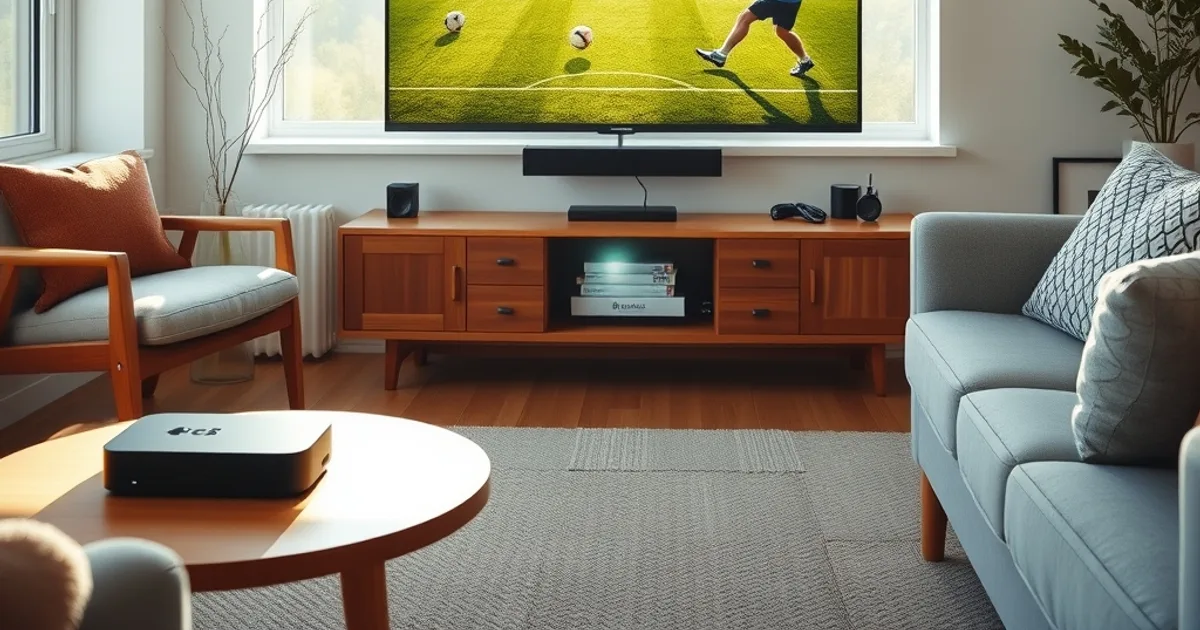
Allsvenskan is deep into its stretch run, the Premier League opens its 2026-27 campaign on August 21, and SHL clubs are already back on the ice for preseason ahead of their September puck-drop. For Nordic households abroad, that's three overlapping seasons worth planning around — and an Android TV box is still the cheapest, most flexible way to get all of it onto the big screen in real 4K, not upscaled 1080p pretending to be sharp.
The catch is that "Android TV box" covers everything from a €30 no-name stick to an Nvidia Shield Pro, and the difference shows up exactly when it matters most: during a tackle at the near post or a breakaway in the third period, when a cheap box drops frames and a properly configured one doesn't. This guide walks through picking the right box, installing Vikings IPTV correctly, and tuning both the device and your network so 4K sport actually looks and plays like 4K.
If you've already got a Firestick in another room, our separate walkthrough on /blog/vikings-iptv-firestick-setup covers that platform specifically — this one is Android TV only, from Google Play install through first kickoff.
Why Android TV Box for 4K Sports Streaming
Android TV boxes sit in a useful middle ground. A smart TV's built-in apps are locked to whatever the manufacturer shipped, often years out of date and slow to decode high-bitrate 4K streams smoothly. A game console can run Android apps only through workarounds. A dedicated Android TV box, by contrast, runs a real, updatable version of Android TV OS, installs apps straight from Google Play, and is built around a media-decoding chipset rather than a general-purpose one — which is exactly what a 4K sports feed with fast motion needs.
The other advantage is device ecosystem. Because Android TV is an open platform, you're not locked into one manufacturer's app store or hardware refresh cycle. You can swap boxes, keep your login, and upgrade the hardware later without touching your Vikings IPTV account or channel setup.
For live sport specifically, 4K matters less for the wide shots and more for fast lateral motion — a winger sprinting down the touchline, a slap shot — where compression artifacts and dropped frames are most visible. A box with proper 4K decoding and a stable pipe handles that motion cleanly; an underpowered one turns it into a blur of macroblocks right as the ball crosses the line.
Not sure which Android TV box fits your setup? Ask us directly before you buy.
System Requirements & Device Compatibility
Vikings IPTV runs on Android TV OS 8.0 (Oreo) or newer. Most boxes sold in the last three to four years meet this, but it's worth checking before you buy — some budget sticks still ship with older forks of Android that were never updated.
For comfortable 4K playback you want at least 2GB of RAM and a quad-core chipset rated for 4K decoding (look for HDR10 and H.265/HEVC support specifically — that's the codec most 4K IPTV streams use, and hardware decoding of it is what keeps CPU load, heat, and stutter down). 8GB or more of onboard storage is enough for the app itself plus a few others; you're not installing games, just streaming clients.
Network-wise, treat 25 Mbps as the realistic floor for one stable 4K stream with headroom, and note whether the box has a Gigabit Ethernet port — cheaper models sometimes cap at 100 Mbps, which is still fine for a single stream but leaves no margin if anyone else in the house is streaming, gaming, or on a video call during a match.
Best Android TV Boxes for Vikings IPTV
Nvidia Shield Pro remains the reference point. It uses a Tegra chipset built for video decoding, handles 4K HDR without breaking a sweat, and its AI upscaling is genuinely useful for the lower-bitrate SD feeds that occasionally show up as backup streams during high-demand matches. It's the most expensive option here, but if you're setting up a main living-room TV for a full season of Allsvenskan, SHL, and Premier League, it's the box least likely to be the weak link.
Mecool KM2 Plus is the value pick that punches above its price: Android TV certified, HDR10+ support, Gigabit Ethernet, and enough horsepower for smooth 4K playback without the premium cost. It's a sensible choice for a second room or a first setup where you want to confirm your network can sustain 4K before spending more.
Xiaomi Mi Box sits in between — solid Android TV OS support and wide app compatibility, but its older chipset can show its age with the most demanding HEVC streams. It's a reasonable option if you already own one, less so as a fresh purchase specifically for 4K sport.
Whichever box you choose, prioritize Gigabit Ethernet support and confirmed HEVC/H.265 hardware decoding over marketing terms like "8K ready" — a box that decodes 4K HEVC cleanly in hardware will outperform a higher-resolution-rated box that relies on software decoding under load.
Network Setup: Ethernet vs WiFi for Stable 4K Streams
Wired Ethernet is the single biggest reliability upgrade you can make for 4K sport, full stop. A wired connection removes the variables that cause mid-match buffering — WiFi interference from neighbors' networks, microwave and Bluetooth interference on 2.4GHz, and the signal degradation that comes with distance and walls between the box and the router.
If running a cable to the TV isn't practical, use 5GHz WiFi exclusively for the box, not 2.4GHz — 5GHz has far less interference and more bandwidth, even though its range is shorter. Position the box with a clear line of sight to the router where possible, and if the TV is more than one room away from the router, a powerline adapter or a mesh WiFi node near the TV will do more for stream stability than any setting inside the app.
For anyone setting up more than one TV on Vikings IPTV — say a living room box and a bedroom Firestick — our multi-room guide at /blog/vikings-iptv-multi-room-setup-guide covers how to structure the network and simultaneous streams so two matches can run at once without either one stealing the other's bandwidth.
Installing Vikings IPTV: Step-by-Step from Google Play Store
On the Android TV box, open the Google Play Store app (pre-installed on all certified Android TV devices) and search for Vikings IPTV. Select the official app, choose Install, and let it download — on Ethernet this typically takes under a minute; over WiFi it depends on your connection speed.
Once installed, the app appears on your home screen or in the apps row. Launch it once before doing anything else to let it complete its first-run initialization and check for any required updates — starting with a fully updated app avoids most first-day playback issues.
If your specific box isn't Play Store certified (some ultra-budget models aren't), you can sideload the APK from the official Vikings IPTV source instead. This is a fallback, not the recommended path — certified Play Store installs get automatic updates and are the more reliable long-term option.
First Login & Account Configuration
Open the app and log in with the credentials tied to your Vikings IPTV subscription. The channel list and electronic program guide load automatically once you're authenticated — there's no separate playlist file to manually add on the standard setup, which is one less thing to get wrong compared to generic IPTV player apps.
Before match day, spend five minutes testing: open two or three channels you know you'll want — an Allsvenskan broadcaster, a Premier League feed, whatever your SHL coverage channel is — and let each play for thirty seconds. This confirms the stream, your network, and the box are all working together before you're relying on it live.
If you're deciding between plan tiers for how many streams or devices you need across the household, /blog/vikings-iptv-standard-vs-premium-plans breaks down the practical differences, and current plan details live at /pricing.
Enabling 4K Output & Configuring Video Quality Settings
4K only reaches your TV if three things line up: the stream itself is 4K, the app is set to stream at the highest available quality, and the box's display output is actually configured for 4K. Check the box's own display settings first — on most Android TV devices this is under Settings > Device Preferences > Display & Sound — and confirm resolution is set to 4K (2160p) at 60Hz if your TV and HDMI cable support it.
Use an HDMI 2.0 or newer cable. Older HDMI 1.4 cables cap out below the bandwidth 4K60 needs and will silently force a lower resolution or refresh rate without any obvious error message — a common, easy-to-miss cause of "why isn't this in 4K" complaints.
Inside Vikings IPTV, check the stream quality setting and make sure it isn't locked to a lower tier for data-saving reasons — some apps default to a conservative setting on first install. Match it to your confirmed available bandwidth rather than always picking the highest number; a stable 1080p stream beats a 4K one that keeps dropping down mid-match.
Streaming Allsvenskan, SHL & Premier League: Your First Match
For your first live test, pick a lower-stakes match rather than a marquee derby — it gives you room to spot and fix any issue without the pressure of missing a big moment. Allsvenskan fixtures right now are a good low-risk option since the season is already underway.
Watch how the stream behaves in the opening five minutes: does it start at full resolution immediately, or take a moment to step up? Minor buffering in the first thirty seconds while the app builds its buffer is normal; buffering that recurs every few minutes usually points to a network issue rather than the app itself.
Once Premier League kicks off on August 21 and SHL follows in September, you'll be running all three competitions through the same setup — worth confirming now, while the stakes are lower, rather than discovering an issue during opening weekend.
Get your Android TV box streaming 4K Allsvenskan, SHL, and Premier League before opening weekend.
Troubleshooting Buffering, Lag & Freezing During Live Sports
Buffering during live sport almost always traces back to one of three places: available bandwidth at that moment, WiFi interference, or the box itself being overloaded by background apps. Work through them in that order rather than guessing.
First, check what else is using your connection — a household member's 4K stream on another TV, a large download, or a game console update running in the background will all eat into the bandwidth your match needs. Second, if you're on WiFi, restart the router and confirm you're on 5GHz, not 2.4GHz. Third, close other apps running on the box; Android TV boxes multitask, and a browser tab or a second streaming app left open in the background competes for the same limited RAM.
If a specific channel keeps freezing while others play fine, it's more likely a source issue on that particular feed than your setup — try an alternate channel covering the same match if one is listed, or wait a few minutes, since high-demand kickoff moments occasionally see brief server-side congestion that clears on its own.
Persistent freezing that happens only in 4K but not when you manually drop to a lower quality setting is the clearest sign your bandwidth is the bottleneck, not the app — at that point, either the network setup needs work or your actual available speed doesn't support 4K reliably yet.
Frequently asked questions
Do I need a specific Android TV box model to watch Vikings IPTV in 4K?
No single model is required, but the box needs Android TV OS 8.0 or newer, hardware HEVC/H.265 decoding, and ideally Gigabit Ethernet. Nvidia Shield Pro and Mecool KM2 Plus are both solid picks that meet these without issue.
Is Ethernet really necessary, or is WiFi good enough for 4K sport?
WiFi can work if you use 5GHz with a strong signal and no competing traffic, but Ethernet removes the interference and congestion variables entirely. For live sport specifically, where a dropped frame during a goal is the worst possible moment for it, wired is the safer default.
Why does my stream say 4K but look soft or blocky during fast plays?
This usually means the stream is stepping down in real time because available bandwidth can't sustain full 4K constantly — check for other devices using your connection, confirm your HDMI cable is 2.0 or newer, and consider a wired connection if you're currently on WiFi.
Can I use the same Vikings IPTV account on an Android TV box and a phone or Firestick at the same time?
Simultaneous stream limits depend on your plan tier — see /blog/vikings-iptv-standard-vs-premium-plans for the breakdown and /pricing for current plan details.
Will an Android TV box let me watch Nordic channels while living abroad?
Yes — that's independent of the box itself and comes down to your Vikings IPTV channel access. Our guide at /blog/iptv-nordic-sverige-suomi-channels-abroad covers accessing Swedish and Finnish channels specifically while outside the Nordics.
How much internet speed do I actually need for one 4K stream?
Plan for at least 25 Mbps sustained to the box as a comfortable floor, with more headroom if others in the household are online at the same time during a match.
Read next: the pricing page or the FAQ.