Peak-Hour Nordic Football: Prepare Your Vikings IPTV Setup Now
September 16, 2026 · 9 min read
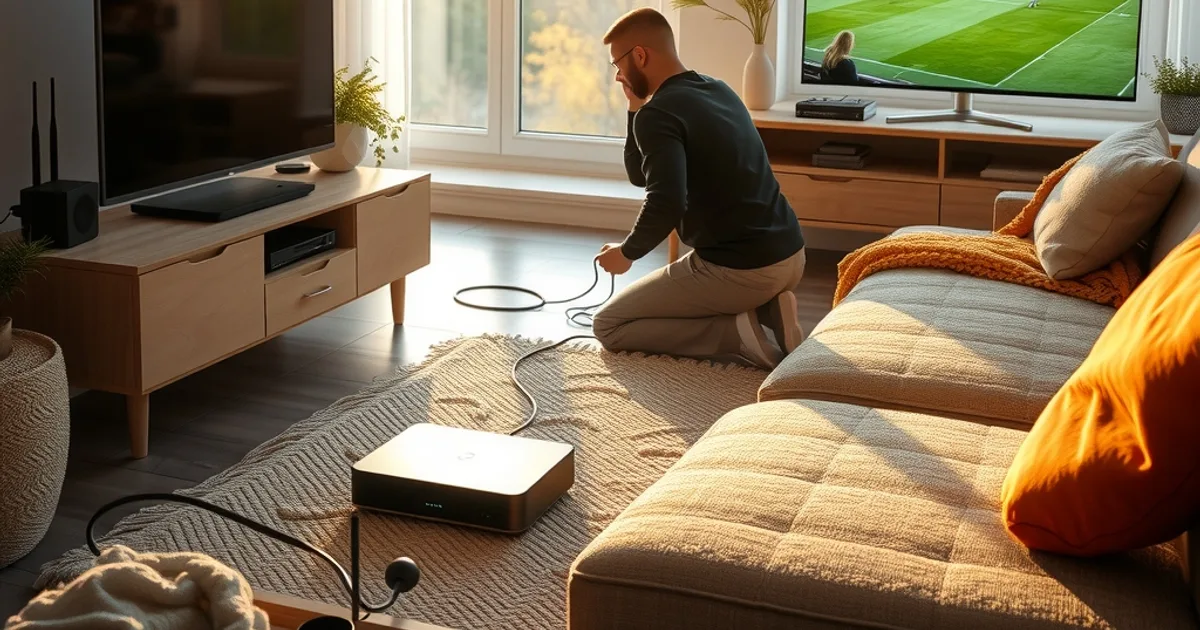
October starts in two weeks. Champions League league-phase matchdays land on October 13-14 and October 20-21, right as the Allsvenskan title race enters its final rounds in October and November, and the SHL season is deep enough into its calendar that regional traffic is already climbing every weeknight. For the first time this year, all three overlap on the same evenings — and they all pull viewers to their screens in the same three-hour window.
That window is 7 PM to 11 PM. It's when Nordic ISPs see their heaviest simultaneous load: streaming, gaming, video calls tapering off from the workday, and now three football and hockey calendars stacked on top of each other. Networks that felt fine in August start dropping frames in October, not because your Vikings IPTV service changed, but because everything sharing your connection — and your ISP's upstream capacity — got busier at once.
The fix isn't a new subscription or a faster plan you don't need. It's a handful of checks and settings you can finish this week, before the October 13-14 matchday hits. This guide walks through all of them: baseline testing, router prioritization, the Ethernet-vs-WiFi call, device readiness for 4K broadcasts, player-level tuning, and how to tell throttling apart from ordinary congestion.
Why October-November Breaks Nordic IPTV: The Three-Sport Collision
Most buffering complaints Vikings support hears in autumn share a pattern: the stream ran fine all summer, then started stuttering in October with no changes on the viewer's end. The cause is almost never a broken setup — it's timing. Champions League matchdays now land midweek roughly every two weeks through the autumn, Allsvenskan is compressing its title and relegation battles into October and November's final rounds, and SHL games run several nights a week through the same stretch. Put those calendars side by side and you get more households streaming, at the same hour, on the same regional ISP infrastructure, more often than at any other point in the year.
This matters because IPTV quality depends on more than your own bandwidth. It depends on contended capacity — the shared pipe between your ISP's local node and the wider internet — staying uncongested at the exact moment you're watching. When a whole neighborhood tunes into the same kickoff, that shared pipe gets squeezed regardless of what your own home network can technically handle. That's why two neighbors with identical plans can have completely different experiences during the same match.
The practical upshot: the problems that show up in October are largely predictable and largely preventable if you address them before peak load hits, not after a match has already frozen. That's the point of front-loading the checklist below into the next seven days rather than troubleshooting reactively on October 13.
Not sure if your connection can handle three overlapping seasons at once?
Speed Test Your Setup Now: Baseline Before October 1 Peak Hits
Before you change anything, measure what you actually have — and measure it at the time you'll actually be watching. A speed test run at 2 PM tells you almost nothing about your connection at 8:30 PM on a Champions League night, because the congestion that causes buffering is time-of-day dependent, not a fixed property of your line.
Run three tests this week: one mid-afternoon, one between 7 and 8 PM on a weeknight, and one during an actual live match if you can. Note download speed, upload speed, and — most important for streaming — latency and jitter, since a connection can hold decent download speed while jitter spikes cause the buffering and pixelation viewers actually notice. If your evening numbers are meaningfully lower than your afternoon numbers, you've already found your bottleneck, and it's happening before the stream even reaches your router.
Write these numbers down. They're your baseline for comparing against what you measure after implementing the changes in this guide, and they're also the evidence you'd want on hand if you ever need to raise a throttling question with your ISP — see the throttling-detection section below for how to interpret a pattern like this properly.
Router QoS Priority: Guarantee Bandwidth for Your Vikings Device (Detailed Setup)
Quality of Service (QoS) is the single highest-leverage setting most households never touch. It lets your router reserve bandwidth for one device or type of traffic ahead of everything else competing for it — which matters a lot when a laptop update, a kid's game console, or a second TV are all pulling data during the same match.
Most consumer routers expose QoS under a menu labeled QoS, Traffic Prioritization, or Smart Connect / Adaptive QoS. The setup is broadly the same across brands: identify the device running your Vikings IPTV app (by device name or, more reliably, by assigning it a fixed local IP first), then set that device or its streaming traffic to the highest priority tier. Some routers let you prioritize by port or protocol instead of by device — if yours does, prioritizing your streaming device's IP directly is simpler and less error-prone.
Give this five minutes now rather than during a match. Once it's set, it stays set — you're not reconfiguring it every night, just making sure your streaming device always wins the contest for bandwidth when the household network gets busy at 8 PM.
If your current router doesn't expose QoS controls at all, or the option is buried behind a firmware you can't easily navigate, that's worth knowing now rather than discovering it on October 13 — which leads to the next decision.
Ethernet vs WiFi 6 Decision: When a Router Upgrade Pays Off
The single most reliable fix for streaming instability isn't a smarter router — it's a wire. A direct Ethernet connection from your router to your streaming device eliminates WiFi interference, signal attenuation through walls, and contention with every other wireless device in the home, all of which get worse in autumn as more households run more wireless devices during the same peak hours. If your streaming box, smart TV, or Firestick is within reasonable cable-run distance of your router, running Ethernet is the highest-impact change you can make before October, full stop.
When Ethernet genuinely isn't practical — the device is in a different room, running cable isn't feasible — the question becomes whether your WiFi is current enough to handle it. Older WiFi standards struggle in dense households because they can't efficiently juggle multiple simultaneous streams; WiFi 6 (and 6E) was specifically designed to handle exactly that kind of multi-device contention better, using more efficient scheduling between devices. If you're on a router older than roughly five years and multiple people in the house stream, game, or video-call at the same time in the evening, a WiFi 6 upgrade tends to pay for itself in fewer buffering complaints the very first congested match night.
Don't upgrade reflexively, though. If your household has one or two devices online in the evening and your baseline speed test from the section above already looks solid at peak hours, a router upgrade won't fix a problem you don't have — the money is better spent elsewhere, or not spent at all.
Device 4K Readiness: Verify H.265/HEVC Support for Champions League 4K
4K broadcasts of major Champions League matches are encoded with H.265/HEVC, a far more efficient codec than older H.264 but one that requires hardware decoding support to play smoothly. If your streaming device doesn't decode HEVC in hardware, it either falls back to software decoding — which taxes the processor and causes stuttering independent of your network speed entirely — or refuses the 4K stream and drops to a lower resolution.
Most streaming boxes and smart TVs from the last four to five years handle HEVC natively, but budget sticks, older smart TV apps, and some Android boxes with underpowered chipsets do not. Check your specific device's spec sheet for HEVC or H.265 hardware decode support before matchday, not during it — a device that struggles with 4K will show the same symptoms as a bad network connection, which makes it easy to misdiagnose and waste time adjusting settings that were never the actual problem.
If you're setting up a Firestick or an Android TV box specifically for this season, our setup guides for Vikings IPTV on Firestick and on Android TV box for 4K cover the exact settings to check during initial setup, before you're relying on the device during a live match.
Player Optimization: Buffer Size, Hardware Decoding, Codec Settings
Once the network and device are sorted, the app itself has settings worth adjusting for peak-hour resilience. Increasing the player's buffer size — usually found under playback or advanced settings — gives the stream more of a cushion to absorb brief network hiccups before they become visible stutters. A larger buffer means slightly more delay before playback starts, which is a trade-off worth making for the two hours of a Champions League match.
Confirm hardware decoding is switched on rather than software decoding, if the app exposes that toggle — this is directly related to the HEVC point above and prevents your device's processor from becoming the bottleneck instead of the network. If your app offers a choice of stream quality or bitrate, consider manually capping it one notch below maximum during peak hours; a slightly lower but stable bitrate beats a stream that repeatedly drops and re-buffers at maximum quality.
For a deeper walkthrough of decoding-specific fixes, our guide on hardware decoding and 4K buffering covers the codec and chipset details in more depth than fits here, and is worth a read if HEVC hardware support turned out to be a question mark for your device in the previous section.
ISP Throttling Detection: Test and Legal VPN Workarounds
Congestion and throttling look similar from the couch — both cause buffering — but they're different problems with different fixes. Congestion is shared infrastructure being overloaded by demand; throttling is your ISP specifically slowing streaming traffic, sometimes as a deliberate network-management policy. Telling them apart matters because a router upgrade won't fix throttling, and a VPN won't fix genuine local congestion.
The baseline speed tests from earlier in this guide are your diagnostic tool. If your speeds drop specifically during streaming sessions but stay normal for other traffic types at the same time of night — a file download or a speed test itself run right after a buffering episode — that pattern points toward throttling rather than general congestion. Our detailed walkthrough on detecting ISP throttling with a VPN test explains exactly how to run this comparison step by step.
Where throttling is confirmed, a reputable VPN is a legal way to encrypt your traffic so your ISP can no longer identify and selectively deprioritize it by type. This is standard, legitimate use of VPN technology for traffic privacy — it doesn't grant access to anything you're not otherwise entitled to, it simply prevents your connection from being singled out and slowed based on what kind of traffic it is.
Get your Vikings IPTV setup peak-season ready before the October 13 matchday.
7-Day Pre-Season Checklist: Champions League Readiness October 1
Day 1-2: Run your baseline speed tests at afternoon and peak-hour times, and write down the numbers. Day 3: Set up router QoS prioritization for your streaming device, assigning it a fixed local IP first if your router requires one. Day 4: Decide Ethernet versus WiFi — run a cable if it's feasible, or check your router's age and WiFi standard if it isn't.
Day 5: Confirm your streaming device's HEVC/H.265 hardware decode support, especially if you're planning to watch Champions League matches in 4K. Day 6: Go into your Vikings IPTV app and adjust buffer size, confirm hardware decoding is enabled, and set a bitrate cap appropriate to your tested peak-hour speed. Day 7: Run one more speed test at peak hour and compare it to your Day 1-2 baseline — if it's meaningfully lower with no other explanation, walk through the throttling-detection steps above before the season gets underway.
If you're already dealing with buffering specifically during marquee matches rather than nightly congestion, our Champions League buffering fix for peak hours is a faster, match-day-specific troubleshooting path. And if you're still deciding which Vikings IPTV plan fits your household's device count and streaming habits going into the season, the standard versus premium plans comparison breaks down what each tier actually supports.
None of this is a one-time chore that expires after Champions League and Allsvenskan wrap up in November — the same congestion pattern returns for major tournaments and playoff runs year after year. Doing it once now means you're not troubleshooting live during a match you actually wanted to watch.
Frequently asked questions
Why does my Vikings IPTV stream buffer more in October than in summer, even though my plan hasn't changed?
It's almost always timing, not your setup. October stacks Champions League, Allsvenskan's final rounds, and SHL games into the same 7-11 PM window, so far more households in your area are streaming simultaneously than in summer. That extra shared demand on local network infrastructure is what causes the slowdown, and it's the same reason two neighbors on identical plans can see different results during the same match.
Do I need to upgrade my router before the Champions League season heats up?
Only if your baseline peak-hour speed test shows a real problem or your household has several devices streaming and gaming at once in the evening. If your evening speeds already hold up and you're on a single-device setup, a router upgrade won't fix an issue you don't have — a wired Ethernet connection to your streaming device is usually the higher-impact, lower-cost fix to try first.
How do I know if my ISP is throttling my IPTV stream versus just being congested?
Compare speeds across traffic types at the same moment. If your streaming session slows down specifically while a simultaneous download or generic speed test stays normal, that pattern points toward throttling rather than general congestion, which affects all traffic types roughly equally. Our ISP throttling detection guide walks through the exact comparison test.
Is a VPN necessary to watch Champions League matches on Vikings IPTV without buffering?
Not by default — try the network and device fixes in this guide first, since most peak-hour buffering is congestion or device-related rather than throttling. A VPN becomes useful specifically when you've confirmed your ISP is deprioritizing streaming traffic by type, at which point encrypting that traffic prevents it from being singled out.
What buffer size should I set in my IPTV player for live football?
There's no universal number since it depends on your app and device, but the general rule is: increase it from the default in small steps during a low-stakes match, not during a Champions League night, until stuttering during normal congestion disappears without introducing a lag that bothers you. A larger buffer trades a slightly longer start-up delay for more resilience against brief network dips.
Does my device need to support 4K to watch Champions League matches smoothly?
No — HD broadcasts don't require HEVC hardware decoding the way 4K does, so an older device can still stream smoothly at HD. The HEVC/H.265 hardware decode question only matters if you specifically want to watch in 4K; if your device lacks that support, sticking to HD avoids the stuttering caused by software-decoding a demanding codec.
Read next: the pricing page or the FAQ.