How to Watch Vikings IPTV: Sign Up & Stream in 5 Minutes
September 3, 2026 · 7 min read
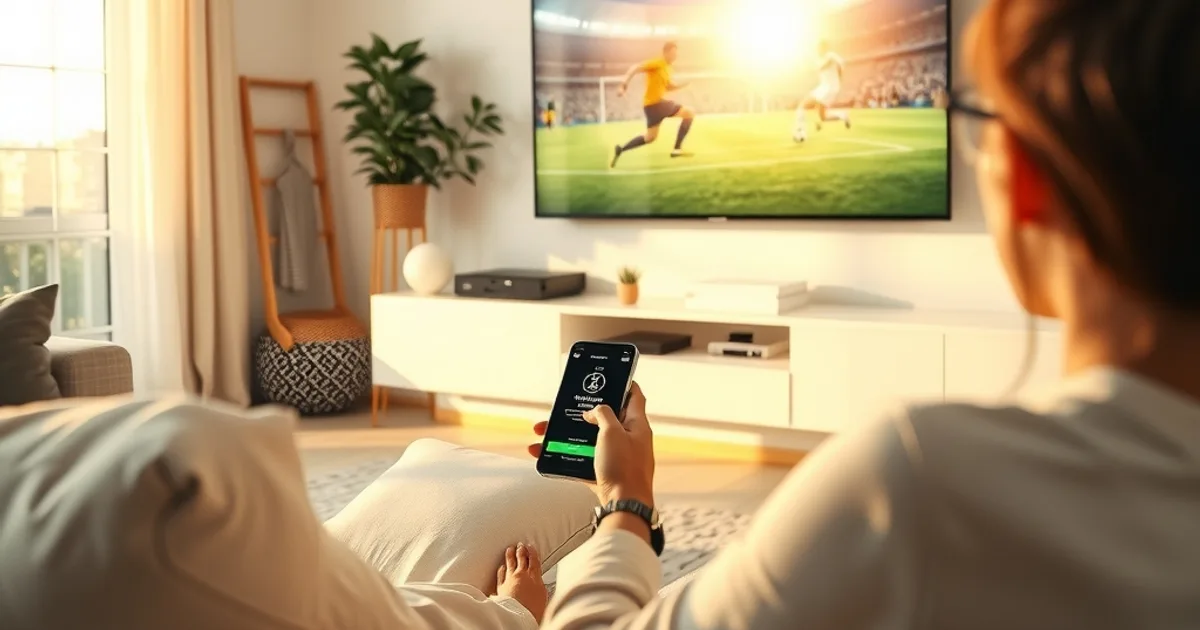
You've decided to try Vikings IPTV — now what? This guide takes you from a blank browser tab to a live stream, in the order you'll actually do it: account, device, app, first match, and what to do if something doesn't load right away.
Early September is peak signup season for a reason. The Champions League league phase is underway, Allsvenskan and Eliteserien are both deep into their autumn run-ins, and most new visitors landing on this page want to be watching something tonight, not reading a manual. So this is written as a checklist you can follow start to finish, not a general explainer about what IPTV is.
If you already know which device you're using, skip ahead to the install section. If you're still deciding between a Fire Stick, an Android box, Apple TV, or your phone, the recommendation matrix below will save you a wrong purchase.
What You Need Before You Start
Signing up takes a few minutes, and the requirements are minimal: a valid email address (this is where your account confirmation and app credentials arrive) and a payment method for checkout. Have both ready before you begin so you're not hunting for a card mid-signup.
You don't need to know your device in advance to create an account — the account itself isn't tied to a device. You'll choose how to watch after checkout, which is why device selection is its own step below rather than something you decide during signup.
One thing worth doing first: check current plans on the /pricing page so you know what you're selecting before you're in the checkout flow. It's easier to compare options in an open tab than to back out of a payment form.
Not sure which device fits your setup? Ask before you buy anything.
Create Your Vikings IPTV Account
The signup flow is intentionally short: pick a plan on /pricing, enter your email, and complete payment. There's no lengthy profile setup or identity verification — this is a streaming subscription, not a bank account.
After checkout, your login credentials and setup instructions are sent to the email you provided. This email is your account's anchor point, so use one you check regularly and can access on the device you'll be watching from — you'll likely want to open that confirmation email again once you're setting up your app.
If the confirmation doesn't arrive within a few minutes, check your spam or promotions folder before assuming something went wrong. Confirmation emails from new senders commonly get filtered on first contact, especially on Gmail and Outlook.
For a breakdown of what separates the standard tier from the premium tier — useful if you're unsure which to pick — see /blog/vikings-iptv-standard-vs-premium-plans before you check out.
Choosing Your First Device
You don't need to buy new hardware to start — Vikings IPTV runs on devices most households already own. Here's a quick recommendation matrix based on what you're optimizing for:
Biggest screen, least setup fuss: a Fire TV Stick plugged into your main TV is the most common starting point, mainly because setup takes minutes and the remote is simple. See /blog/vikings-iptv-firestick-setup for the exact steps.
Already own an Apple TV: it handles 4K well and is a strong pick if you're planning to watch high-profile matches like Champions League fixtures in the best available quality — walkthrough at /blog/vikings-iptv-apple-tv-4k-world-cup-2026.
Want a dedicated streaming box: an Android TV box gives you the most flexibility for 4K and app management — guide at /blog/vikings-iptv-android-tv-box-4k-setup. If you already own a Roku, that works too — see /blog/vikings-iptv-roku-setup-guide.
Watching on a phone or tablet first: if you want to test the service before committing to a living-room setup, iOS is the fastest path — /blog/iptv-ios-ipad-nordic-setup-guide covers iPhone and iPad specifically.
Install the App & Log In
Once you've picked a device, the install process is the same shape everywhere: download the app or player recommended for your platform, open it, and enter the login details from your confirmation email. Each device guide linked above walks through the exact screens for that platform, since app stores and remote navigation differ between a Fire Stick, an Android box, Apple TV, and Roku.
The single most common first-login mistake is a typo in the credentials — copy and paste directly from the confirmation email rather than retyping them, especially on devices where you're entering text with a remote control one letter at a time.
Give the app a minute to load its channel list on first launch. This initial sync is normal and only happens once per device; after that, opening the app is instant.
Watch Your First Match
With early September's football calendar in full swing, most new users are here for one of three things: Champions League league-phase matches, Allsvenskan's autumn run-in, or Eliteserien. All three are live right now, which is exactly why this is the moment to get set up rather than wait.
Once you're logged in, use the app's search or category browsing to find the specific league or match you want rather than scrolling the full guide — it's faster and avoids missing kickoff while you browse. If you're specifically trying to follow Allsvenskan from outside Sweden, /blog/allsvenskan-2026-27-streaming-outside-sweden covers the access angle in more detail.
Bookmark or favorite the channels you use most after your first session — most apps support this, and it turns your second and third logins into a two-tap process instead of a search every time.
Troubleshooting Your First Stream
Buffering on first launch: this is almost always a network issue, not an account issue. Run a speed test on the device itself (not just your phone) — a wired connection or a strong Wi-Fi signal near the router makes a bigger difference than most people expect, particularly for 4K streams.
Login rejected: double-check for extra spaces or autocorrect changes if you typed credentials manually, and confirm you're using the email the account was created with, not a different one you may have used at checkout via a payment provider.
App installed but channel list is empty or outdated: force-close and reopen the app to trigger a fresh sync. If that doesn't resolve it, a reinstall clears any corrupted local cache faster than troubleshooting settings menus.
If none of the above resolves it, the fastest path is direct human support rather than trial and error — see the contact option below.
Ready to create your account and catch tonight's match?
Next Steps: Exploring Your Full Channel Lineup
Once your first stream is running, it's worth spending a few minutes exploring beyond the match that brought you here. Vikings IPTV's Nordic-focused lineup covers more than the headline leagues, and most users discover their regular viewing habits shift once they see the full guide rather than just the channel they searched for.
If you're weighing whether to upgrade from your current plan, /blog/vikings-iptv-standard-vs-premium-plans breaks down what changes between tiers so you can decide based on how you actually watch, not guesswork.
And if you end up watching primarily on a second device later — a tablet for one room, a stick for another — the device guides linked throughout this article stay useful as a reference each time you add one.
Frequently asked questions
Do I need to pick a device before I sign up?
No. Your account is created independently of any device. You choose how to watch — Fire Stick, Android box, Apple TV, Roku, or mobile — after checkout, using whichever app guide matches your setup.
How long does signup actually take?
The account creation and checkout itself takes a few minutes. Most of the total time to first stream goes into app installation on your chosen device, which varies by platform but is typically quick with the linked step-by-step guides.
What if I don't receive my confirmation email?
Check spam and promotions folders first, since confirmation emails from new senders are frequently filtered on first contact. If it still hasn't arrived after a reasonable wait, reach out directly for help rather than attempting to sign up again.
Can I watch on more than one device?
Device setup is per-app, so you can install and log in on multiple devices you own. Check your plan details on /pricing for specifics on simultaneous streaming.
Why is my stream buffering on the very first attempt?
First-launch buffering is almost always network-related rather than account-related — test your connection speed on the streaming device itself, ideally with a wired connection or strong Wi-Fi signal, especially for 4K content.
I'm mainly here for Allsvenskan or Eliteserien — does the setup differ?
No, the account and app setup process is identical regardless of which league you're watching. Once logged in, use the app's search to jump straight to Allsvenskan or Eliteserien coverage — see the Allsvenskan streaming guide linked above for access specifics.
Read next: the pricing page or the FAQ.