Stop Champions League Buffering: ISP Throttling Fix September 2026
August 30, 2026 · 9 min read
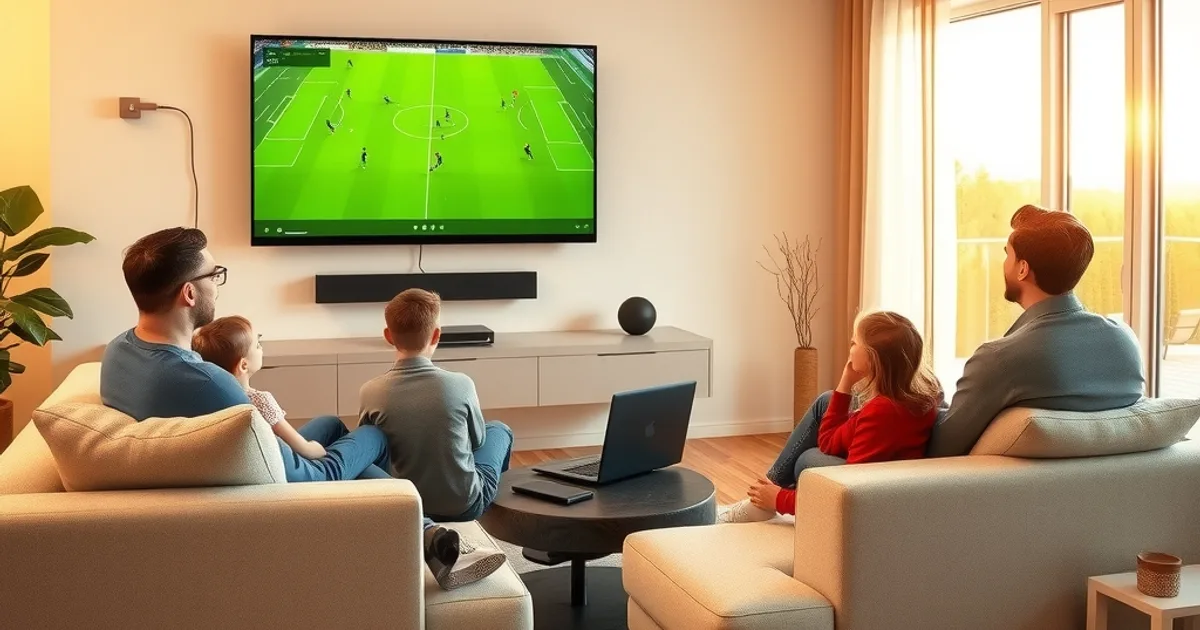
Champions League 2026-27 kicks off on September 8, with the full group-stage calendar landing on weekend evenings through the autumn, and the Premier League restarting its own weekend slate around the same time. That overlap is exactly when Nordic broadband gets slowest — and if you've ever watched a match dissolve into a spinning wheel at the 60th minute, it's not a coincidence. It's the moment your ISP's network is under the most pressure, and video streaming is usually the first traffic type asked to give ground.
This guide is written for that exact scenario: a reader who has already tried restarting the router, still buffers every Saturday, and is now searching for an actual explanation rather than another 'check your Wi-Fi' checklist. We'll show you how to tell throttling apart from a genuinely bad connection, why 4K football needs more bandwidth than most weekend Nordic lines can spare, and the concrete fixes — cabling, router QoS, and edge-node routing — that make the difference between watching the match and watching a loading icon.
If you want the wider seasonal picture first, our companion piece at /blog/champions-league-2026-27-nordic-streaming-guide covers fixtures and kickoff times across the region. This article stays narrowly focused on the buffering problem itself.
Why Champions League Matches Buffer Every Weekend
Buffering during a big match is rarely random. Most Nordic ISPs run networks that are sized for average daily usage, not for the moment when a large share of subscribers in the same city or apartment block all open a live 4K stream within the same 15-minute kickoff window. When that demand spike hits, ISPs use traffic-shaping systems that recognize video streaming patterns — the steady, high-bitrate flow of packets that IPTV and other streaming services produce — and quietly cap the bandwidth allocated to that traffic class, even while your advertised download speed stays technically unchanged.
This is different from congestion on the open internet. It's a deliberate policy decision made inside the ISP's own network, applied selectively to protect overall network stability during predictable peak windows: weekend evenings, and specifically the hours when major football competitions kick off. The practical effect is that your connection can test at 200 Mbps on a Tuesday morning and still choke a single 4K stream at 21:00 on a Saturday.
Because the slowdown is intermittent and tied to time-of-day rather than to your equipment, it's easy to misdiagnose. People blame their router, their TV app, or their IPTV provider, restart everything, and the problem reappears the following weekend at the same time — because the cause was never local to begin with.
Not sure if your current setup can handle Saturday's traffic spike without buffering?
Confirm You're Throttled, Not Lagging: 3 Diagnostic Tests
Before changing any equipment, spend ten minutes confirming what you're actually dealing with. The first test is a simple speed comparison: run a speed test at a quiet hour (say, Tuesday at 11:00) and again during the exact kickoff window of a weekend match. A quiet-hour result that's dramatically higher than the peak-hour result — often a drop of more than half — is the clearest signal of time-based throttling rather than a hardware fault.
The second test is packet loss and jitter, not just raw speed. Buffering is often caused less by low bandwidth and more by inconsistent delivery — packets arriving late or out of order. Any router with a built-in diagnostics page, or a free ping/traceroute tool, will show packet loss spiking during peak hours even if the headline speed number looks acceptable. Rising jitter during the same window your stream stutters is a strong throttling fingerprint.
The third test isolates the traffic type: run a large file download or a non-video speed test during buffering, on the same device, at the same time. If bulk data transfer stays fast while only the video stream degrades, that's targeted traffic shaping, not a generic bandwidth shortage — your ISP has enough capacity, it's just deprioritizing streaming specifically. We go deeper into running these tests with a VPN as a comparison baseline in /blog/detect-isp-throttling-iptv-nordic-vpn-test.
Why 4K Football Needs 50+ Mbps — and Why Nordic ISPs Won't Give It to You on Weekends
Football is one of the hardest things to stream well in 4K. Fast camera pans, a moving crowd in the background, and rapid scene changes all defeat video compression far more than a static talk show or film dialogue scene — the encoder has to work harder to keep detail sharp, which pushes real-world bitrate requirements well above the 25 Mbps many providers quote as a bare minimum for 4K. A sustained 50+ Mbps of stable, low-jitter bandwidth is a more realistic target for a smooth 4K match feed, especially during fast-paced moments like a counterattack or a goal celebration replay.
The problem is that 'stable' is the operative word, and it's exactly what disappears during ISP peak-hour management. A connection advertised at 100 or 200 Mbps can still see its effective streaming allocation cut to under 10 Mbps once shaping kicks in on a Saturday evening — enough for a low-resolution stream to survive, but not enough to sustain 4K without the player falling back to a lower bitrate or stalling to rebuffer.
This is why two households with identical advertised plans can have completely different match-night experiences: one has a router and setup that protects streaming traffic through the peak window, and one doesn't. The fixes below — wired connections, QoS, and edge-node routing — exist specifically to claw back that stability during the hours when it matters most.
Ethernet Over Wi-Fi: Why a Cable Defeats Throttling
Wi-Fi adds its own layer of instability on top of whatever your ISP is doing. Every neighboring network on the same channel, every microwave or baby monitor, and every wall between your router and your TV introduces packet loss and retransmission delay — and during peak hours, when ISP-side throttling has already thinned your margin for error, that extra Wi-Fi noise is often what pushes a stream from 'slightly compressed' into 'visibly buffering.'
A wired Ethernet connection from your router directly to your streaming device removes that variable entirely. It won't undo ISP-side throttling on its own, but it guarantees that every Mbps your connection does deliver actually reaches the device without local interference — which matters more, not less, when your overall bandwidth budget is already tight on a match night.
If running a cable to every TV in the home isn't practical, Wi-Fi 6 (or 6E) is a reasonable middle ground, provided the streaming device sits on the 5GHz or 6GHz band rather than the crowded 2.4GHz band, and isn't more than one interior wall from the router. For homes with multiple TVs, our multi-room setup guide at /blog/vikings-iptv-multi-room-setup-guide walks through wiring and access-point placement in more detail.
QoS Configuration: Prioritize Traffic to Your Streaming Device
Quality of Service (QoS) is a setting built into most modern routers that lets you tell the router which device or traffic type gets first claim on available bandwidth. Most consumer routers ship with QoS either disabled or set to a generic 'gaming' profile — neither helps a streaming box competing with a laptop downloading updates or a phone backing up photos in the same household during kickoff.
To use it well: open your router's admin panel, find the QoS or traffic-prioritization section, and assign your streaming device the highest priority tier, either by device name or by its local IP address (set a static IP or a DHCP reservation for it first, so the rule doesn't drift). Some routers also let you prioritize by port or protocol used by the streaming app — check your device manufacturer's documentation for the specific ports.
QoS won't restore bandwidth your ISP is actively removing further upstream, but it ensures that whatever bandwidth does reach your home network is spent on the match first, not on a background download. Combined with a wired connection, it's the single most effective free fix most households never turn on.
The Edge-Node Advantage: Why Vikings IPTV Survives Throttling Better
Not all streaming traffic looks the same to an ISP's shaping system, and where the video is actually served from matters. A service routing traffic through distant, generic international servers gives Nordic ISPs a long, congested path to throttle — every extra network hop is another point where peak-hour shaping and general internet congestion can compound. Vikings IPTV's approach is to route through edge infrastructure positioned closer to Nordic networks, shortening that path and reducing the number of congestion points between the content and your router.
This is the structural piece competitors rarely explain. Nordic streaming services often advertise 'stable 4K' without describing how the stream actually reaches your home — and the honest answer is that the last-mile ISP connection is the bottleneck they can't control from their own servers. Positioning delivery infrastructure closer to the edge of the network doesn't eliminate ISP throttling, but it minimizes everything else that compounds it: distance-related jitter, transit congestion, and the extra points of failure a longer route introduces.
The result during a real peak-hour test is fewer picture-quality drops and shorter rebuffer events even when the underlying ISP connection is under the same weekend pressure as everyone else's — because less of the available bandwidth budget is being spent overcoming distance and hops before the stream even reaches your router.
Peak-Hour Timing: When Throttling Hits Hardest
Throttling isn't constant — it follows predictable daily and weekly patterns tied to when the most households are online at once. Weekday evenings see a milder version of the same effect as people stream after work, but weekend evenings, particularly during a marquee kickoff window, are consistently the worst, since a large share of subscribers in the same area open a live stream within the same short window.
Knowing this lets you prepare rather than react. If you're setting up a new stream, a new device, or testing your connection, do it on a weekday afternoon when the network is quiet — problems you can't reproduce then are likely peak-hour-specific, not a persistent fault. And if you know a big match falls in a historically bad window for your ISP, apply the fixes above (wired connection, QoS priority, and confirming your provider uses edge routing) before kickoff, not during the first half when the stream is already struggling.
This timing pattern is also why a single bad match night shouldn't be read as a verdict on your whole setup — check whether the same stutter happens on a quiet Tuesday before concluding anything is broken.
Ready to watch every Champions League match this season in stable, buffer-free 4K?
Fallback: When to Use a VPN or Local Proxy — and Why It Still Works
If you've confirmed genuine ISP throttling using the tests above, and wired connections plus QoS haven't fully solved it, a VPN is a legitimate next step — not because it magically adds bandwidth, but because it changes how your traffic looks to your ISP's shaping system. Encrypted VPN traffic is harder for deep-packet-inspection systems to classify as 'video streaming,' so some ISPs that specifically target streaming traffic patterns simply don't apply the same throttle to it.
This isn't a universal fix: a VPN adds its own overhead and routing distance, so on a connection that's throttled purely on total bandwidth rather than by traffic type, a VPN can occasionally make things slightly worse rather than better. It's worth testing during a real match rather than assuming it will help.
A local proxy or a VPN server chosen for proximity — as close to your actual location as possible rather than a far-off country — keeps the added routing distance small while still masking the traffic pattern. For the full walkthrough of setting this up and measuring whether it's actually helping, see /blog/detect-isp-throttling-iptv-nordic-vpn-test, which pairs directly with the diagnostic tests earlier in this guide.
Frequently asked questions
How do I know if my ISP is throttling Champions League streams specifically, or just streaming in general?
Run the same diagnostic tests during a football match and during a different type of stream (a film or a talk show) at the same time of night. If only the live sports stream degrades while the on-demand stream stays smooth, your ISP's shaping system is likely recognizing the live-video traffic pattern specifically, not just applying a blanket cap.
Will upgrading my internet plan fix Champions League buffering?
Sometimes, but not always. If your ISP throttles based on time-of-day traffic shaping rather than your plan's raw ceiling, a higher-tier plan can still get shaped down during peak hours. Run the quiet-hour vs. peak-hour speed test from this guide before paying for a plan upgrade — it tells you whether the bottleneck is your plan's ceiling or a shaping policy that applies regardless of plan.
Does Ethernet really make a noticeable difference for 4K football streaming?
Yes, particularly during peak hours when your overall bandwidth margin is already reduced by ISP shaping. Wi-Fi interference and packet loss eat into whatever bandwidth does reach your home, so removing that variable with a direct cable connection often recovers a meaningful chunk of the stability lost to throttling.
What's the difference between QoS and a VPN for fixing throttling?
QoS manages how bandwidth is distributed inside your own home network, prioritizing your streaming device over other traffic. A VPN changes how your traffic appears to your ISP outside your home network, which can bypass throttling that targets streaming traffic by its recognizable pattern. They solve different parts of the problem and work well combined.
Why does Vikings IPTV mention edge-node routing instead of just 'fast servers'?
Because raw server speed isn't the bottleneck for most Nordic households during peak hours — the last-mile ISP connection is. Edge-node routing shortens the network path between the content and your home, reducing the number of congestion points a stream has to survive before it even reaches your router, which matters most exactly when your ISP connection is under the heaviest weekend pressure.
Should I set up my streaming fix before or during the match?
Before. Wired connections, QoS priority rules, and confirming your VPN or proxy setup all need to be in place before kickoff — troubleshooting live, mid-match, on an already-throttled connection is the hardest possible time to diagnose or fix anything.
Read next: the pricing page or the FAQ.